Grid fields are used to group closely related data in a tight interface (table).
To create a grid field:
- Go to Study Design
- Go to Forms
- Select the visit/form where you want the Grid Field to be located
- Select the Grid field from the dedicated section
- Add all of the properties, as needed (Position, Label, Variable name)
- Click on Grid configuration
- Add the desired layout (columns/rows) and their
- Select the field type for each row
- Save
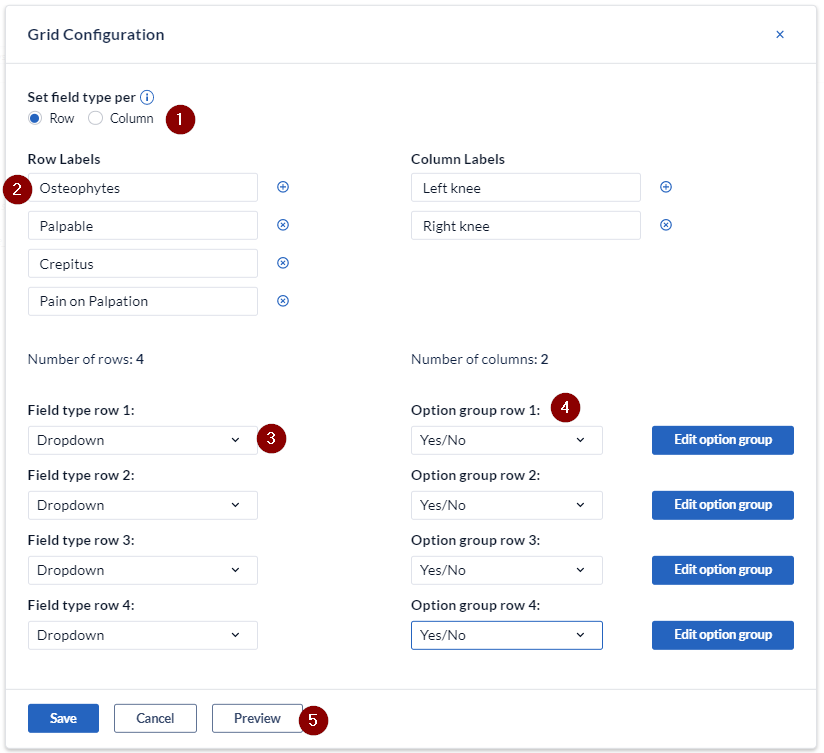
- Determine whether the field type is to be set by column (each column will have the same field type) or row (each row will have the same field type).
- Enter the labels for the rows and columns. Add or remove rows and columns by using the + / X signs.
- Set the field type per row - these can be set as:
- Text
- Number
- Dropdown
- Date
- Set the option group for the associated field. Select from the existing groups or create a new one by selecting "New option group".
- You can check the grid field configuration by clicking the 'Preview' button.
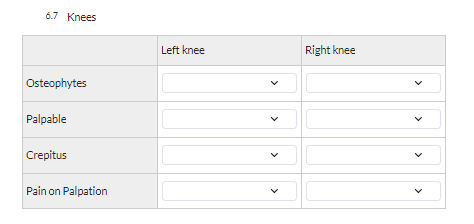
Here is an example of a grid field as seen in the study forms:
Note: After data has been collected in a grid field, it is not possible to change the number of rows or columns, nor the selected field types.
If it is absolutely necessary to make changes to the configuration, we advise to copy the grid field, change the copied one and keep both instances for all participants.
Other grid field properties
It is not possible to:
- Add validations to grid fields
- Make a grid field required
- Mark grid field data as missing
- Adjust the column or row size
If you have too many rows or columns, the users will need to scroll left/right and up/down to be able to fill in the whole grid and might omit some fields.
In this case, it is advised to consider using the Repeated Measure field instead.
Grid fields have certain limitations and in some cases it is better to use Repeated measure repeating data structure.
Learn more when to use grid fields or repeated measure in this article: Should I use a Grid or a Repeated measure in EDC/CDMS?
- You can use the grid field in certain calculations. The grid fields are saved as so-called JSON objects and this is what you will need to define in the calculations: Calculate with grid fields in EDC/CDMS
- When a grid field is exported, each grid column is exported as its own column, which is labeled as Variablename_rowname_columnname
- As of CDMS v2025.1.0.0, you can customize the domain variable suffix for grid field cells. Instead of the system automatically generating suffixes based on grid position (e.g.,
_a1), you can define a custom suffix (e.g.,_ul_wheezing) so it exports exactly as needed: Data standardization - When retrieving grid field data via the Castor API, all cells in the grid are retrieved as a single raw JSON string inside one field ID, rather than individual fields. Additionally, it is currently not possible to send (POST) data to a Grid field via the API.
- Grid fields are not recommended for use in Castor Connect (mobile ePRO) or web surveys intended to be completed on mobile devices, as the horizontal interface does not scale well to small screens.