When creating a radio button, checkbox or dropdown field, you will need to select an option group.
In Castor CDMS, Option Groups are centralized collections of pre-defined choices that you can reuse across multiple fields in your study to ensure data consistency and accelerate study build times.
The field type you choose determines the selection behavior: radio buttons and dropdowns restrict the user to a single choice, while checkboxes allow multiple selections.
When configuring these fields, you can easily assign an existing option group or build a new one directly from the field settings window:
- If the option group is already created, choose it from the offered dropdown. You can also type the name of the option group in the box.
- If the required option group has not yet been created, you can create on by selecting the 'New option group' button:
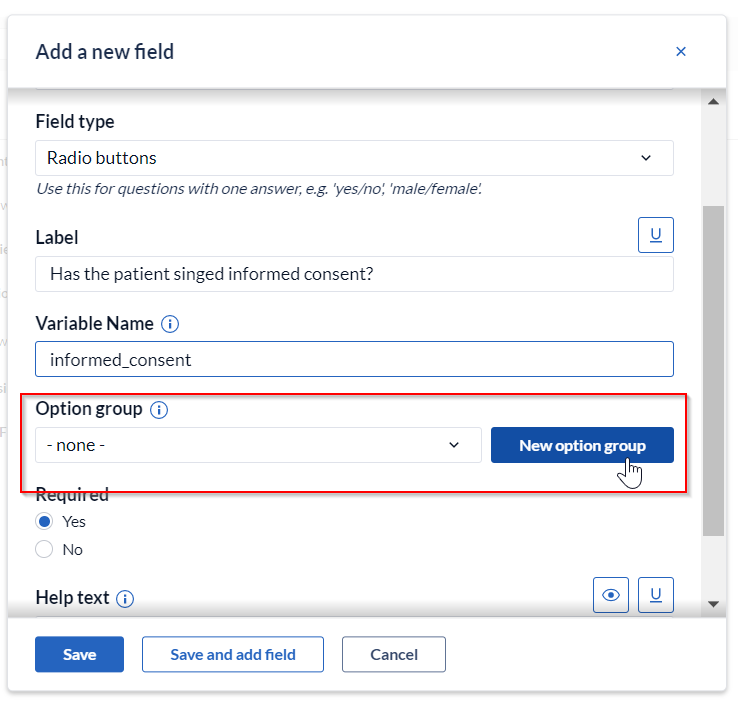
Create option groups
In the 'New option group' dialog window, add the details and options of your option group:

- Name: create a name for your new option group, this will be used to identify the option group later. All option names have to be unique, to prevent failing dependencies and problems with your analyses later on.
- Description: create a description, useful to remember why you created this option group, optional.
- Layout: choose whether this option group should be displayed vertically (below each other) or horizontally (next to each other).
- Option Name and Value: the option name is what the user sees when choosing an option on the form, it is also used as a 'value label' during export. The option value is used as the 'value' for the export, it is also used when creating dependencies. Option names should be unique per option, to prevent issues with dependencies and analyses later on. It is possible to apply bold (**bold**), italic (_italic_) and underline (___underline___)text in the same way as this works for field labels and field info text.
- Add Option: when creating a new option group, three option and value fields are provided by default. Click 'Add Option' to insert additional option name and value fields when more options are desired.
- Save your option group: this closes the dialog window and returns to the 'Edit field' window.
Dropdown fields
Dropdown fields turn into a search box which improves data entry performance for studies with large option groups such as medication or country lists.
View, edit, and delete option groups
To review and edit option groups, go to the 'Study forms' tab, then click on the 'Option Groups' tab. All created option groups are visible, along with their options and associated value.
The option groups can be reused in various option group fields throughout the CRF.

To edit an option group, you can mouse over the group to show the cogwheel. Click the cogwheel and select 'Edit option group' from the menu to open the 'Edit option group' dialog window, where you can make changes to the option list, names and values.
Option groups are global. Any modification made to a shared group (for example, altering a "Yes/No" group labels/values) will immediately update every single field linked to that group across the entire CRF. For the implications of changing option groups, check the article Can I still change the forms when my study is live in CDMS?
Changing an option group that is already heavily referenced in Field Validations & Dependencies can occasionally cause the CRF Export to fail. It is best practice to finalize option values before building complex dependencies.
It is possible to remove any unused option groups from your study structure. Click on the cogwheel and select 'Delete option group'.
It is not possible to remove an option group that is still being used by a field in your study, as this would lead to data loss. To remove an option group, you would first need to replace all the option group fields with another option group.